Traces.js
Traces.js is JavaScript library (built using D3) for visualizing and annotating signal data on the web. For audio signals, the library has full support for audio file playback. A zoom feature allows for zooming both visuals and audio synchronously. The library also has various interface containers and controls to make building building customized web applications easier.
Getting Started
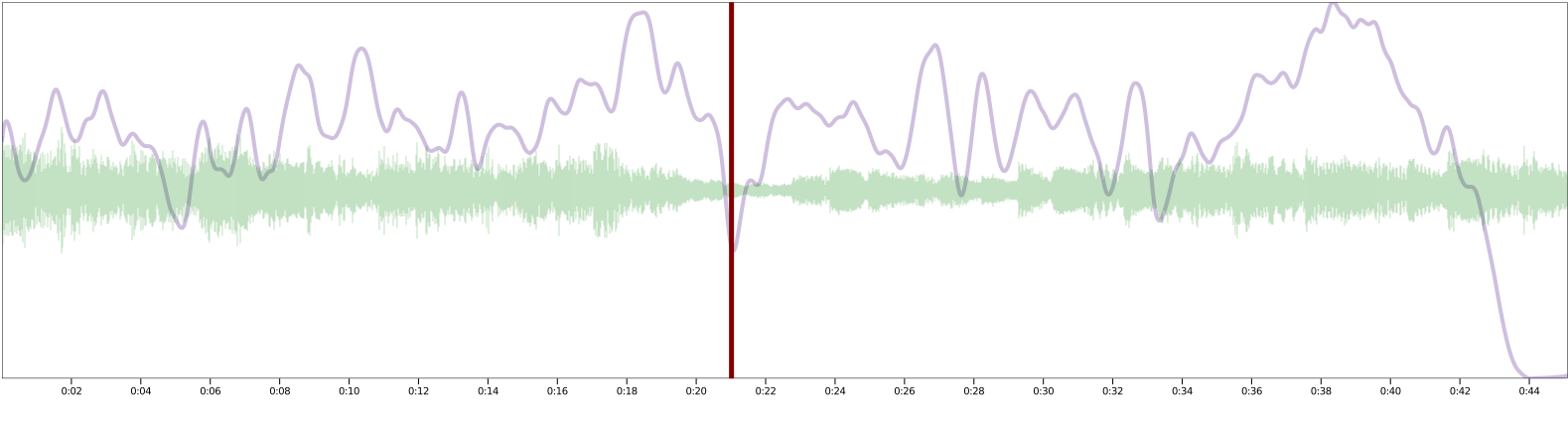
To create visualization like the one shown above, first created an HTML file to contain the visualization. Then try the following steps. Note that no data is provided in these examples.
Step 1: Create one or more panes
Panes are classes for drawing visuals, listening to audio, making annotations, or zooming visuals and audio.
VisualPane
A VisualPane takes in data and uses it to draw various kinds of visual representations including Areas, Curves, Grids, Instants, Notes, ProgressIndicators, Ranges, Spectrograms, and Waveforms (see AudioPane for a Waveform example). To create a new curve that will be drawn with the VisualPane:
let visualPane = new VisualPane();

const response = await fetch("example.json");
let curveData = await response.json();

visualPane.createCurve(curveData);
A VisualPane can generate a curve and then return it if a handle to the curve is needed. The curve must then be added to the VisualPane to be drawn.
let curve = visualPane.generateCurve(curveData);
visualPane.addVisual(curve);
All data generated by a VisualPane must be formatted in a specific JSON format.
AudioPane
An AudioPane takes in audio data and handles audio playback including displaying an animated playback progress indicator. To create a new AudioPane, two parameters are required: an AudioContext and an audio ArrayBuffer. An audio ArrayBuffer can be created in a number of ways including with fetch(), XMLHttpRequest or FileReader.
The following example loads a file called "example.mp3" into an AudioPane:
let audioContext = new AudioContext();
const response = await fetch("example.mp3");
let audioArrayBuffer = await response.arrayBuffer();
let audioPane = new AudioPane(audioContext, audioArrayBuffer);
A Waveform visual can be derived from the audio added to the AudioPane. After creating a new Waveform, add it to the VisualPane. Note that the endTime parameter is used in cases where the total time for other data is greater than the total time of the imported audio file.
let visualWaveform = new Waveform("waveform", "Example Waveform", null, audioPane.audioSource, endTime, true);
visualPane.addVisual(visualWaveform);
AnnotationPane
An AnnotationPane allows for the creation and editing of various types of annotations. The annotations in an AnnotationPane typically refer to (and are aligned with) time points of interest in VisualPanes or AudioPanes.
annotationPane = new AnnotationPane();
An AnnotationPane allows the creation of various types of annotations including Boundaries, Comments, Markers, Note Groups, and Regions. The annotation types are allowed is customizable so, for example, Markers could be allowed while the other types are not. If the creation of multiple types is allowed (by default, all are allowed), the type mode must be set to create, update, or delete annotations of that particular type. For example, to create, update, or delete Boundaries, the following call is required:
annotationPane.setTypeMode(AnnotationType.BOUNDARY);
Boundaries can then be created by clicking on a time point (on the x axis) of interest. Once created, Boundaries can be updated (by changing their time, their strength, or their labels) or deleted.
ZoomPane
A ZoomPane allows for interactive synchronized zooming of both visuals and audio.
let zoomPane = new ZoomPane();
Once a new ZoomPane is created, selecting a time range (across the x axis) will zoom the data from any other pane into the selected time range.
Step 2: Create a Timeframe to contain the pane(s)
A Timeframe is a container for panes. Any number of panes can be added to a Timeframe. The following example add all of the pane types.
let timeframe = new Timeframe();
timframe.addPane(visualPane);
timframe.addPane(audioPane);
timframe.addPane(annotationPane);
timframe.addPane(zoomPane);
When multiple panes are added, a Timeframe layers them on top of each other. This is important to know since it means that only one pane can be active (interactive via the mouse) at a time. The active pane can be set directly. For example, to set the active pane to the AnnoationPane use:
setActivePane(annotationPane);
If the active pane is not set directly, the last pane added will be the active pane.
To display the Timeframe on a web page, it needs to be initialized by providing it with a parent element (usually a div defined for the page),
a size (width and height), and an end time for the time axis. For example, to attach a Timeframe to a <div> element called exampleDiv with a
size of 1600 by 1200 pixels that is 20 seconds long:
timeframe.initialize(exampleDiv, 1600, 1200, 20);
Once initialized, all of the panes and all of their data and controls can be displayed by calling the Timeframe's draw method.
timeframe.draw();